Contents
General directions (easiest setup)
For the most seamless experience, please sign in using "Continue with Google" (not just typing your Google email and making a separate password). That way you log in with the same Google account you already use, and you don't have to remember two passwords.
-
1
Open DuolingoUse the Duolingo app on your phone/tablet, or go to Duolingo on a browser.
-
2
Tap Log in or Get startedYou may see multiple sign-in options.
-
3
Choose Continue with GoogleSelect the same Google account you use for our class.
-
4
If you already have a Duolingo account, read belowScroll to "If you already have a Duolingo account" to avoid account duplication.
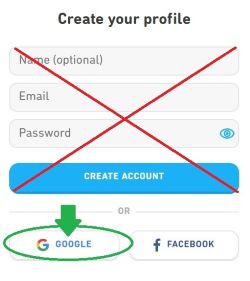
Example login screen with Continue with Google.
Set the language + placement test vs. starting from the beginning
-
1
Select the course: RussianWhen Duolingo asks which language you want to learn, choose Russian.
-
2
Choose your "base language": English
-
3
Placement test or start from the beginning?Duolingo may offer a placement test (sometimes called "test out" or "skip ahead").
My recommendation: start from the very beginning for extra practice, even if you already know some basics. It helps build speed, confidence, and spelling habits. -
4
If you do take placement, you can still review early unitsSkipping ahead doesn't lock you out of the earlier material. You can always go back for review.

Tip: If you accidentally chose the wrong course or language settings, don't panic.
You can add/switch courses in Duolingo settings later.
If you already have a Duolingo account
If you already use Duolingo, great. The key question is whether your existing Duolingo account uses the same email as your class Google account.
✅ Same email as your Google Classroom account
- No problem.
- Open the assignment email and continue.
- You should not need to create a new account.
⚠️ Different email than your Google Classroom account
Read the next section carefully:
Email mismatch options.
Email mismatch options (choose the best fit)
If your Duolingo account email and your class Google account email are different, Duolingo may treat them as two separate accounts. Here are your options, from simplest to most "keep my old progress":
Option A (simplest): Create a new Duolingo account with Google
Choose this if you don't have many points/streaks on the old account, or you don't mind starting fresh.
- Log out of Duolingo (if needed).
- Sign in using Continue with Google with your class Google account.
- Open the assignment email and complete the work.
Option B (keep your existing account): Change your Duolingo email BEFORE joining the class
Choose this if you want to keep your existing progress and you're able to update the email on your Duolingo account.
- Open Duolingo settings (More -> Settings -> Profile).
- Change the email to match your class Google account email.
- Then open the assignment email and join/continue.
Important: Do this before enrolling in our Duolingo classroom (before opening the assignment link),
to reduce the chance of creating a duplicate account.
Option C (special case): "Change the Google Classroom email"
- If you want to use your Duolingo email for our class, I can invite the other Google account to the class instead (and you join with that account).

Quick self-check: If you're unsure which account you're using, look at your Duolingo profile page and confirm the email/account in settings.
If the assignment link opens the wrong profile, log out and sign back in with Continue with Google using the class Google account.